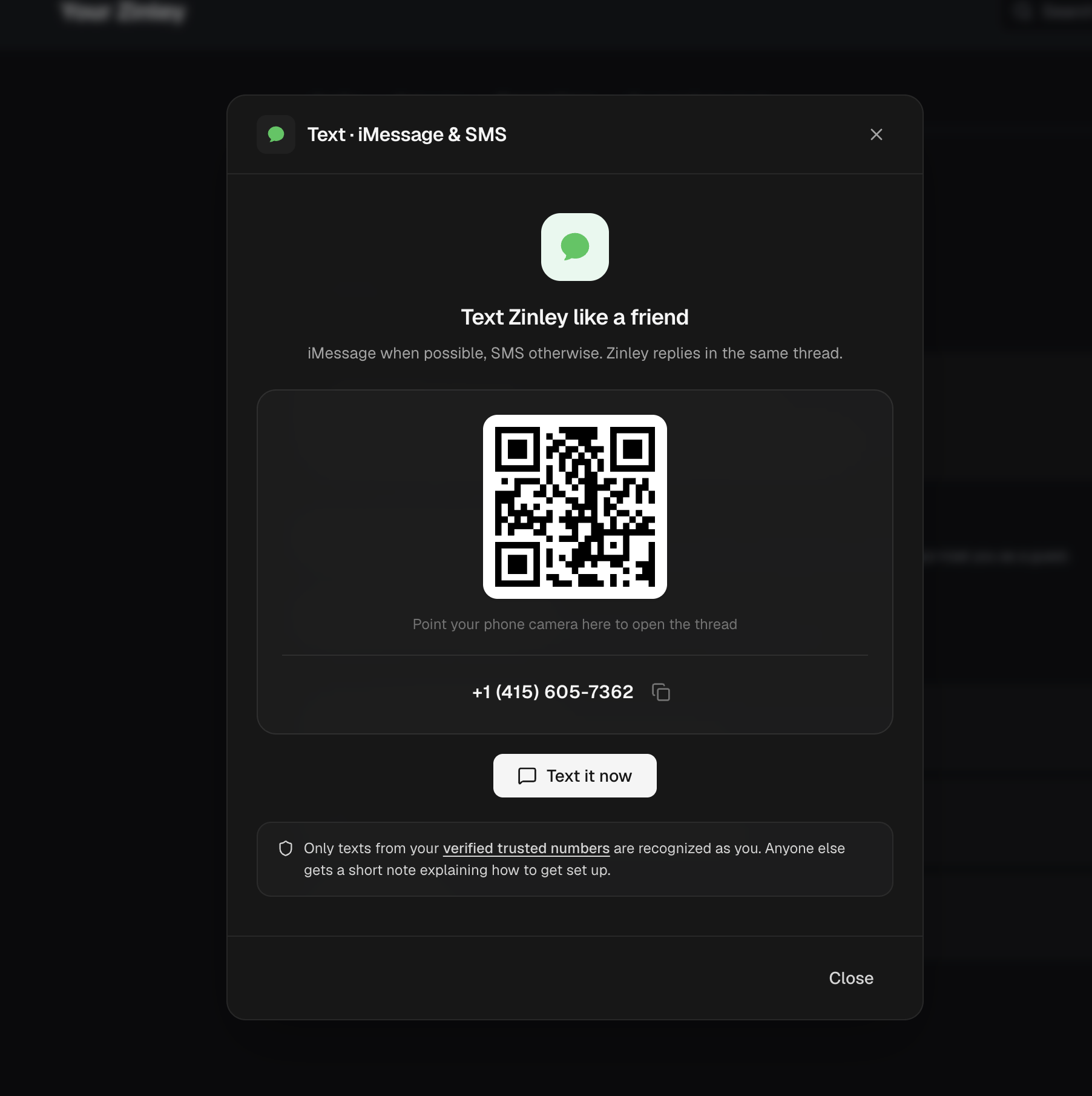
Text · iMessage & SMS
Text your agent from your phone the way you'd text a friend. There's no bot to create, no token to paste, and no app to install — you send a message to Zinley's number and it answers in the same thread. iMessage when possible, SMS otherwise, so it works from an iPhone, a Mac, or a plain Android handset.
You need a verified trusted number. This channel is trusted-numbers-only: Zinley answers texts that come from a number on your trusted list and nothing else. Set that up first — see Add your number first below, or jump to Trusted & blocked callers.
Open the setup dialog
There are two doors to the same dialog. Use whichever is closer.
From the chat screen
On a new task, under Reach your agent anywhere, there's a line reading "Also talk to your agent on iMessage, Telegram, Discord". Click iMessage — or the + at the right of that row — and the setup dialog opens. The two buttons above the card are shortcuts to the same places: Scan jumps straight to the QR code, and Manage opens Connections → Chat apps.
From Connections
Go to Configure → Your Zinley → Connections → Chat apps and choose Set up on Text · iMessage & SMS — the first row, above Telegram and Discord.
Add your number first
Zinley works out who's texting from the number the message came from, and on this channel that check is the gate, not a downgrade:
- A number on your trusted list gets the full agent — your people and topics, your mail, your connected devices. A trusted text can even wake your desktop and run on-device tools.
- Any other number gets no conversation at all. Zinley replies once with a short note explaining how to get set up, and that's it.
So add your mobile before you start texting. Open Your Zinley → Trusted & blocked — the same list the phone side uses — click + Add, enter the number, and confirm the code Zinley texts to it. Because the code has to land on the handset, you can only trust numbers you actually hold. Add every handset you'll text from; you can trust up to 10 numbers.
See Trusted & blocked callers for the full rules, including how a number is paired to a device and what happens if you add it from a second machine.
Start the thread
The dialog gives you three ways to get the conversation going.
- Scan the QR code — point your phone's camera at it. Your Messages app opens a thread already addressed to Zinley, so you can just start typing. This is the fastest route when you're at your desk and want the thread on your phone.
- Use the number — it's printed under the QR code, with a copy button beside it. Take it from your own dialog rather than from a screenshot or these docs: the texting number can change, and the one you see may not be the one shown here. Once you have the thread, save it as a contact so future replies don't arrive from an unknown number.
- Text it now — opens the thread on the machine you're on, handy on a Mac with Messages signed in.
That's the whole setup. Nothing is stored on your side, and there's no webhook or bot to maintain.
This is not your own Zinley number. The number in this dialog is the one you text to reach your agent. A free number of your own is a separate thing — that's the line other people call and text, which your agent answers on your behalf.
Texting day to day
Anything you'd ask in chat works over text:
"What's on my calendar tomorrow?" "Reply to Linh's last email and show me the draft first." "On my MacBook, check whether the build finished."
A few practical notes:
- Same agent, same memory. A text thread isn't a separate assistant — it's the same agent, with everything it already knows about you.
- iMessage or SMS, whichever is available. Blue bubbles on Apple devices, green ones when it falls back to SMS. Replies always come back in the thread you wrote in.
- You can send photos. Attach an image and ask about it — a screenshot of an error, a receipt, a whiteboard — the same as dropping a picture into chat.
- Message length follows the transport. Whatever iMessage and SMS allow is what you get: iMessage carries a long reply in one message, while SMS breaks it into segments, so answers read choppier there.
- Confirmation still applies. Sending an email, placing a call, anything outward-facing waits for your OK, exactly as in the app.
- The model is the one you picked. There's no model picker in a text thread, so it runs whatever is set on Configure → Speed & Model — Auto by default. See Speed & Model.
Credits
Every text is a normal request and spends credits from the same balance as chat, phone, and email — there's no separate texting allowance. When you run out, Zinley texts back to say so rather than going quiet. See Plans & limits and Billing.
Turning it off
There's no token to revoke here, so the trusted list is the switch:
- Remove your number from Trusted and the thread goes quiet — the number stops being recognized, so it no longer gets answers.
- Block the number and it's refused before it reaches Zinley at all: nothing answered, nothing logged, no interruption.
The Connections row itself stays available, and as the footer there notes, connections are stored encrypted and can be disconnected at any time.
Troubleshooting
- No reply at all — nine times out of ten the number isn't trusted. Check it's on Your Zinley → Trusted & blocked and that you finished the SMS verification. Also worth checking: your credit balance, and that the number isn't on your blocked list.
- I got a note about "getting set up" instead of an answer — you texted from a number Zinley doesn't recognize. Add that handset to the trusted list, or text from one already on it.
- The QR code doesn't do anything — some cameras won't hand off to Messages. Copy the number from the dialog and start the thread by hand.
- My bubbles are green, not blue — that's the SMS fallback, and it's fine; only the shape of the replies changes.
- It can't reach my computer — the device may have cross-device turned off; see Devices overview.
Related
- Trusted & blocked callers — the list this channel depends on.
- Telegram — the same idea, on Telegram, with owner and guest lists.
- Discord — reach your agent from a Discord server.
- Get a number — your own line, for calls and texts from other people.
- Speed & Model — which model answers your texts.
- Plans & limits — what a message costs.