Tasks
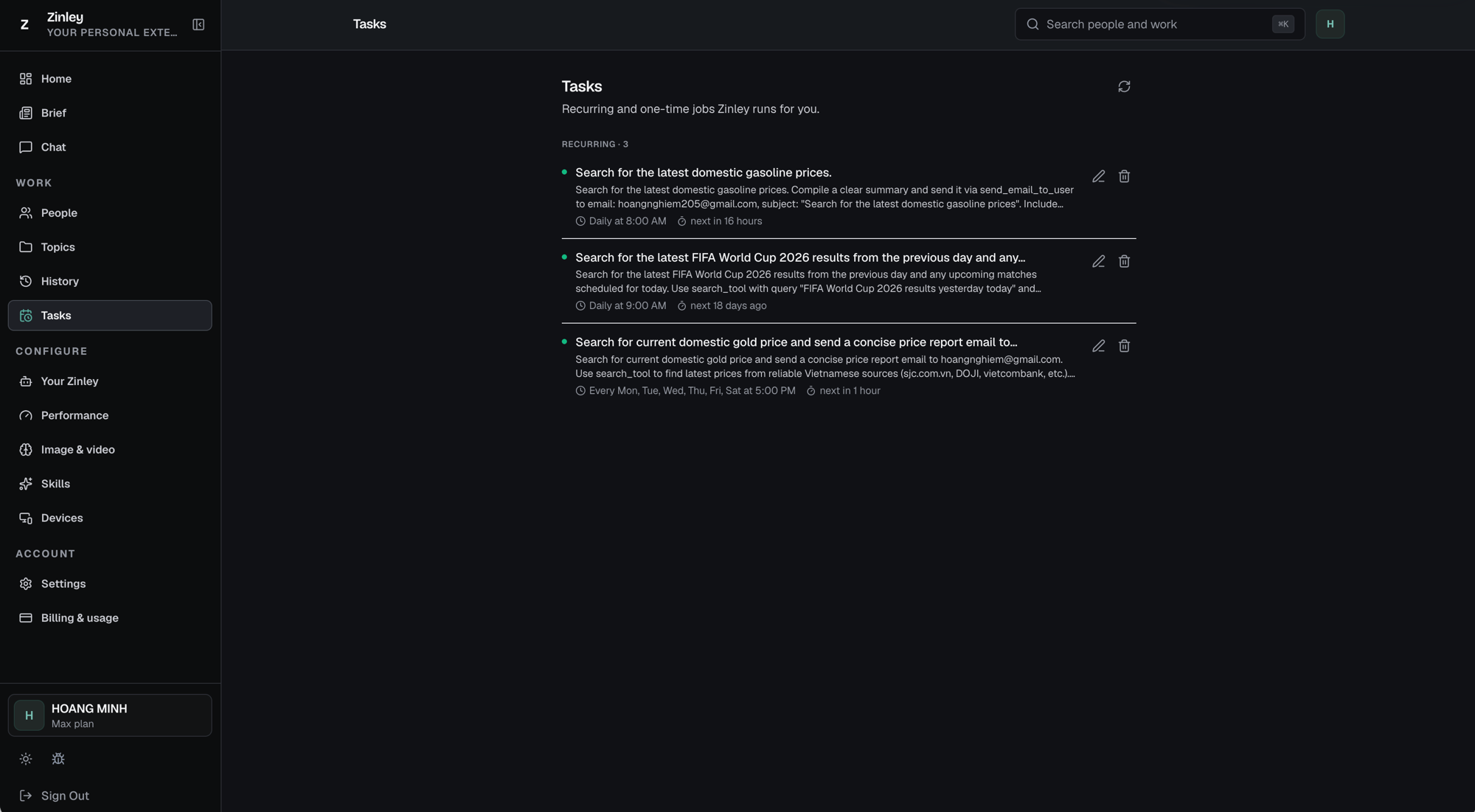
Tasks are the recurring and one-time jobs Zinley runs for you — searches, reports, reminders, and follow-ups on a schedule. Open Work → Tasks.
Creating a task
You don't build tasks with a form — you just ask Zinley, and it schedules the job. You can do that from any channel:
- In Chat — "Every morning at 8, email me the latest gas prices."
- By email — send or CC your Zinley address with the request.
- By phone — tell it on a call.
Zinley sets up the schedule and runs it for you; the task then shows up here so you can track and manage it.
The task list
Tasks are grouped (e.g. Recurring · 3), with Refresh to pull the latest. Each card shows:
- A status dot and the title.
- A short description of what the task does.
- The schedule (e.g. "Daily at 8:00 AM" or "Every Mon, Tue, Wed, Thu, Fri, Sat at 5:00 PM") and the next run (e.g. "next in 16 hours").
- Edit (✎) and Delete (🗑) buttons on the right.
Editing a task
Click ✎ to open Edit task:
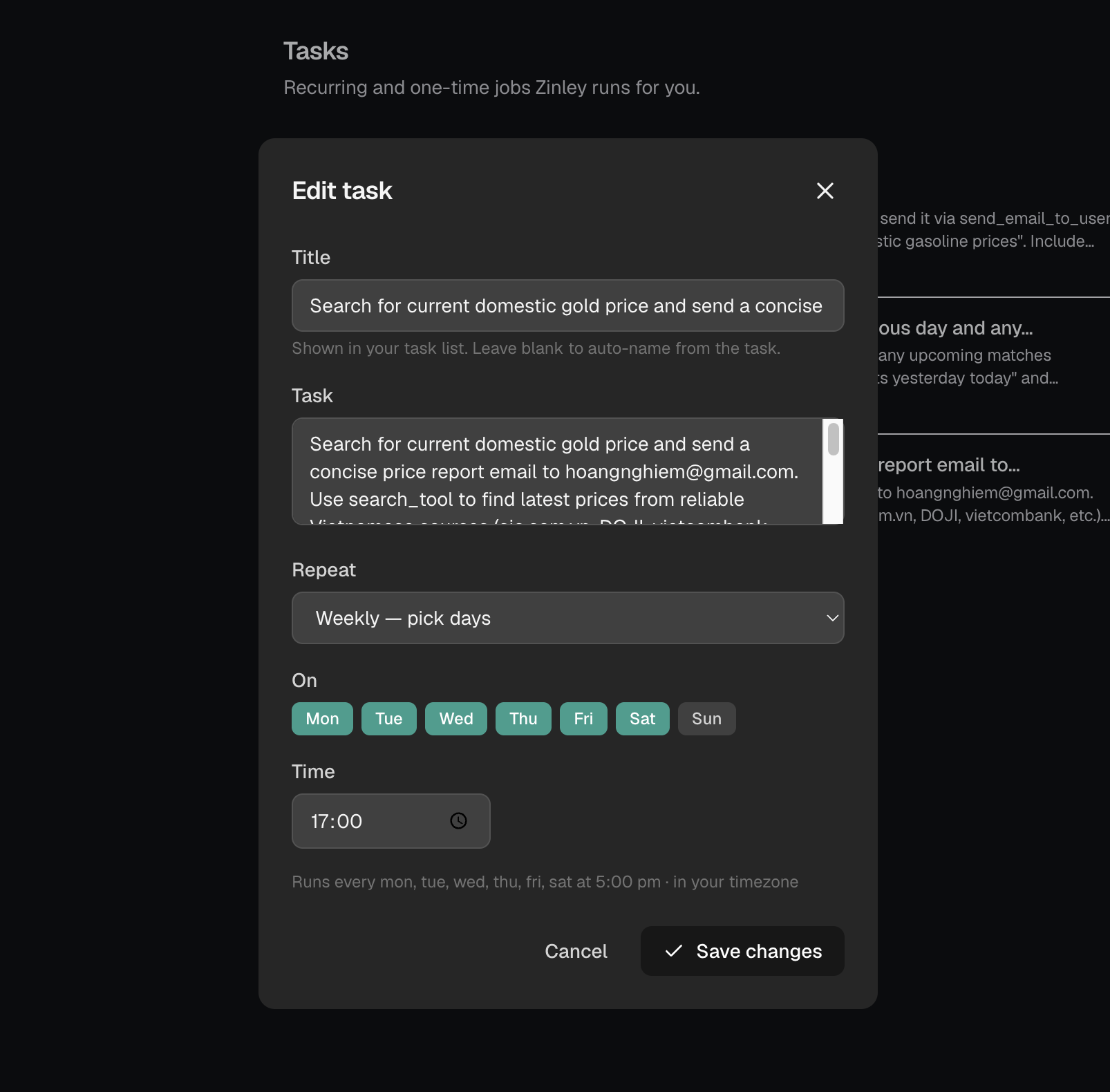
- Title — the name shown in your task list. Leave blank to auto-name from the task.
- Task — the full instruction Zinley follows (the prompt itself).
- Repeat — how often it runs (e.g. Weekly — pick days, daily, one-time).
- On — for weekly tasks, the days it runs (Mon–Sun toggles).
- Time — the time of day it runs, in your timezone; a line beneath confirms the schedule in plain language.
Click Save changes (or Cancel to discard).
Deleting a task
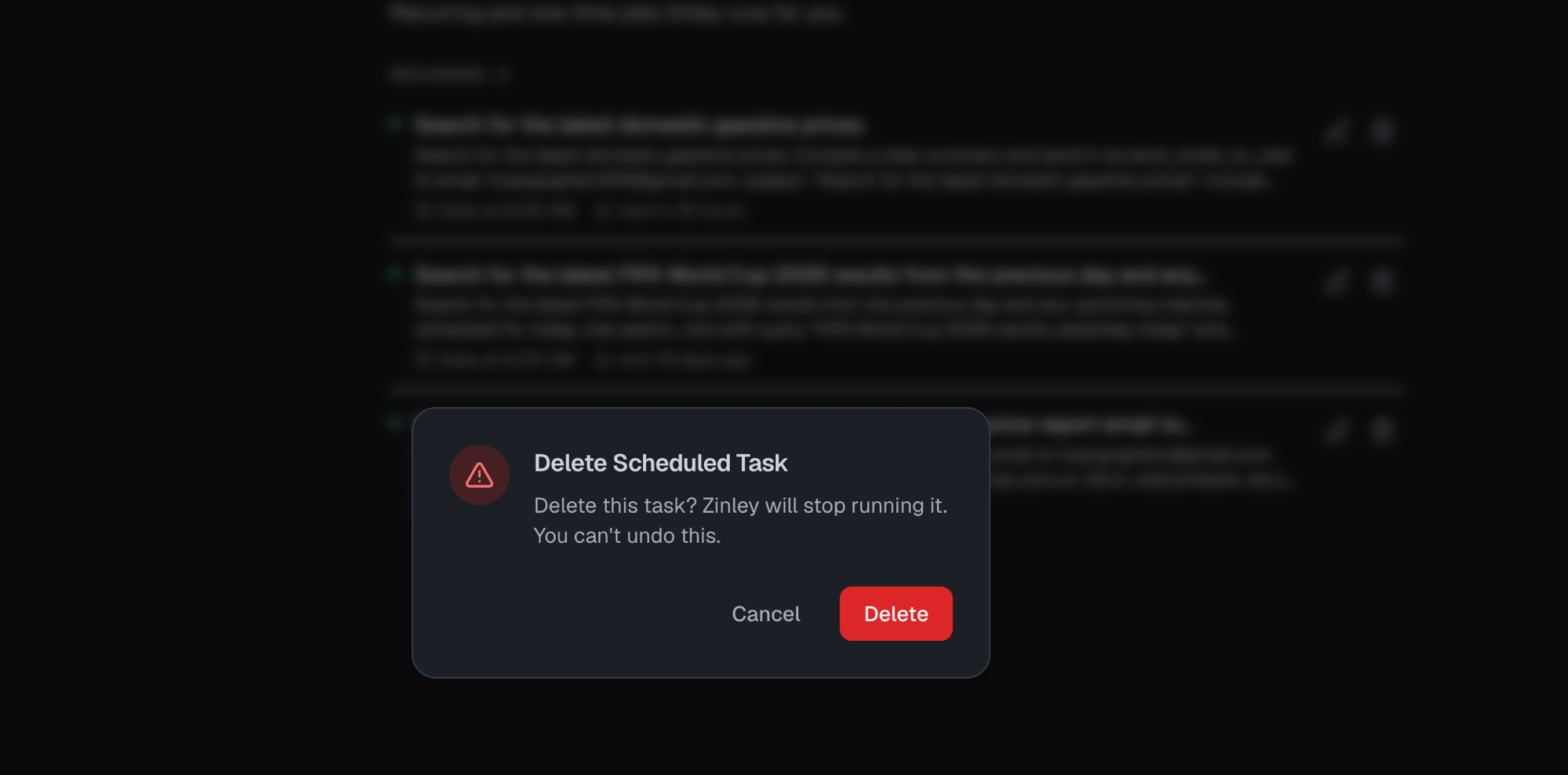
Click 🗑 to remove a task. Zinley asks to confirm — "Delete this task? Zinley will stop running it. You can't undo this." — since deleting is permanent.
Your plan caps how many scheduled tasks you can have (the Free plan allows up to 3) — see Billing & Usage.