Home
Home is your landing screen — what needs you, what Zinley has been up to, and how people reach it. It's the first thing you see when you open Zinley, and there's more below the fold, so scroll down to see everything. Here's every section, top to bottom.
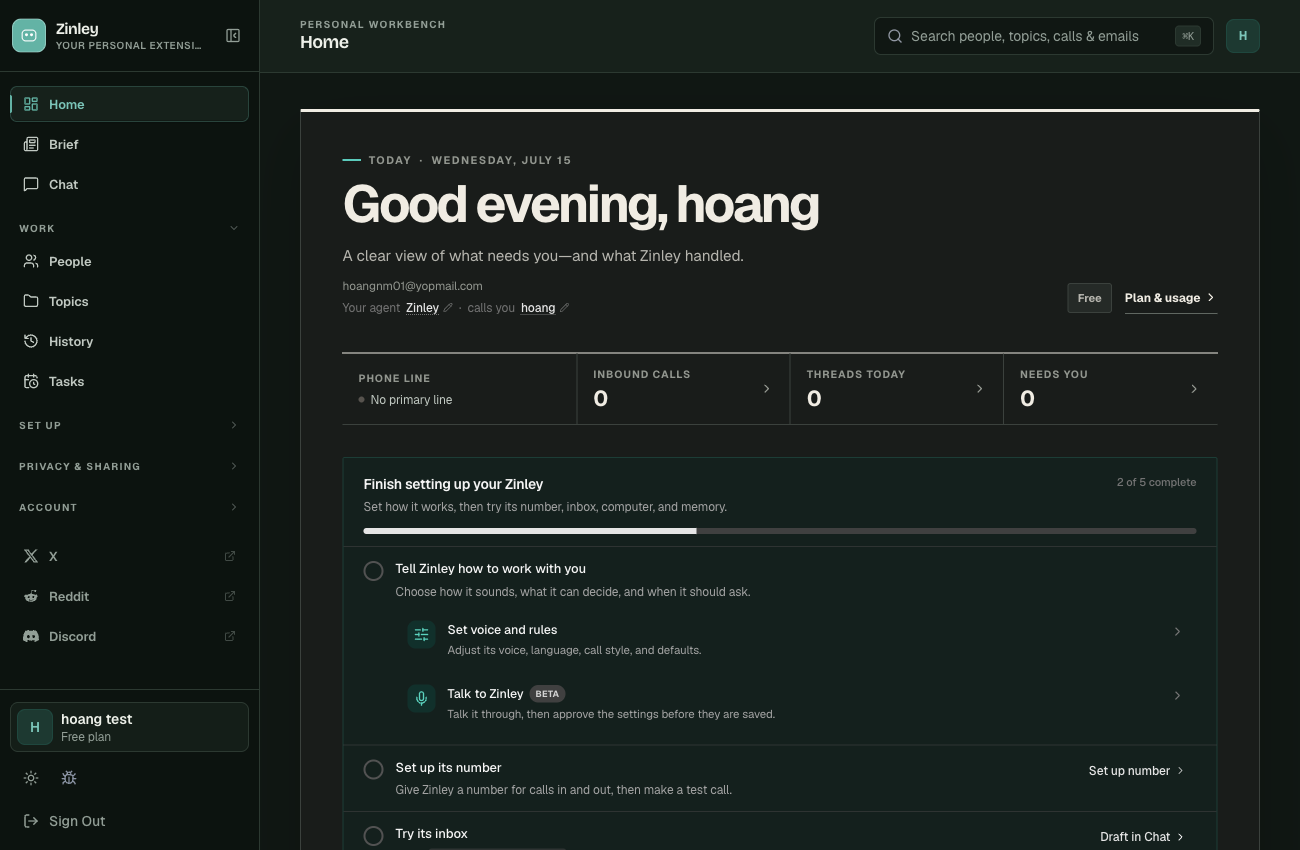
Setup checklist (new accounts)
When your agent isn't fully set up yet, the top of Home shows a checklist called "Get Zinley ready to represent you" with a "X of 5 complete" progress bar. Each step is explained in Quick Start. Once all five are done, the checklist tucks away and the sections below take over.
Needs you — Decisions and follow-ups
The block front and center: decisions and follow-ups waiting on you. These are the things Zinley can't finish on its own — a choice to confirm, a reply to approve, a call to make.
- Each item is something to act on — open it to see the context and decide.
- See all (top-right) opens the full list so nothing slips through.
- When there's nothing pending, you'll see All caught up — "Decisions and follow-ups from Zinley will appear here."
Recent activity
On the right, a running log of what Zinley has been doing — calls answered, emails sent, tasks handled. Two views, switched with the toggle:
- At a glance — a rolled-up summary.
- Last 24 hours — just today's activity, newest first.
When it's quiet you'll see "Nothing in the last 24 hours yet. Zinley's activity will show up here as it happens." For the full record of calls and emails, open History.
Your front door — How people reach your Zinley
Share one page, or use its number and inbox directly. This section is your agent's public face and every way to hand it out.

Your contact card
A shareable card with your agent's name, tagline, photo, phone number, email, and a QR code. From here you can:
- Add photo — click the photo circle to give your agent a face on the card.
- Scan (QR code) — anyone can point a phone camera at the code to open the card instantly — handy in person or on a screen share.
- Copy link — copy the card's public URL (e.g.
https://zinley.com/card/yourname) to text a friend, drop in your bio, or add to an email signature. - Edit card — change the photo, name, tagline, and theme, and pick what the card shows. (Full options live on Your Zinley → Profile.)
- Copy embed — copy a small HTML snippet to paste into your own website so the card shows up there.
- Open page — preview the live public card exactly as visitors see it.
Number, inbox, and computer
Three direct channels, each with a quick action:
| Channel | What it's for | Action |
|---|---|---|
| Get a phone number | Set up a number and choose how Zinley answers and when it asks you. | Set up → Your Zinley |
Email inbox (…@me.zinley.com) |
Email the inbox directly or CC it on a thread — Zinley follows up and brings you in for decisions. | |
| Zinley computer | Open Chat to work on Zinley's virtual computer, or a device you approve. | Open → see Devices |
Related
- Brief — a written summary of what needs you.
- Chat — talk to Zinley and delegate work.
- History — the full record of calls and emails.
- Quick Start — the setup checklist, step by step.
- Interface Tour — the rest of the app.