Chat
Chat is where you talk to Zinley directly — ask questions, think through a plan, delegate a task, or simply tell it to handle a call, an email, or a follow-up, all from one place.
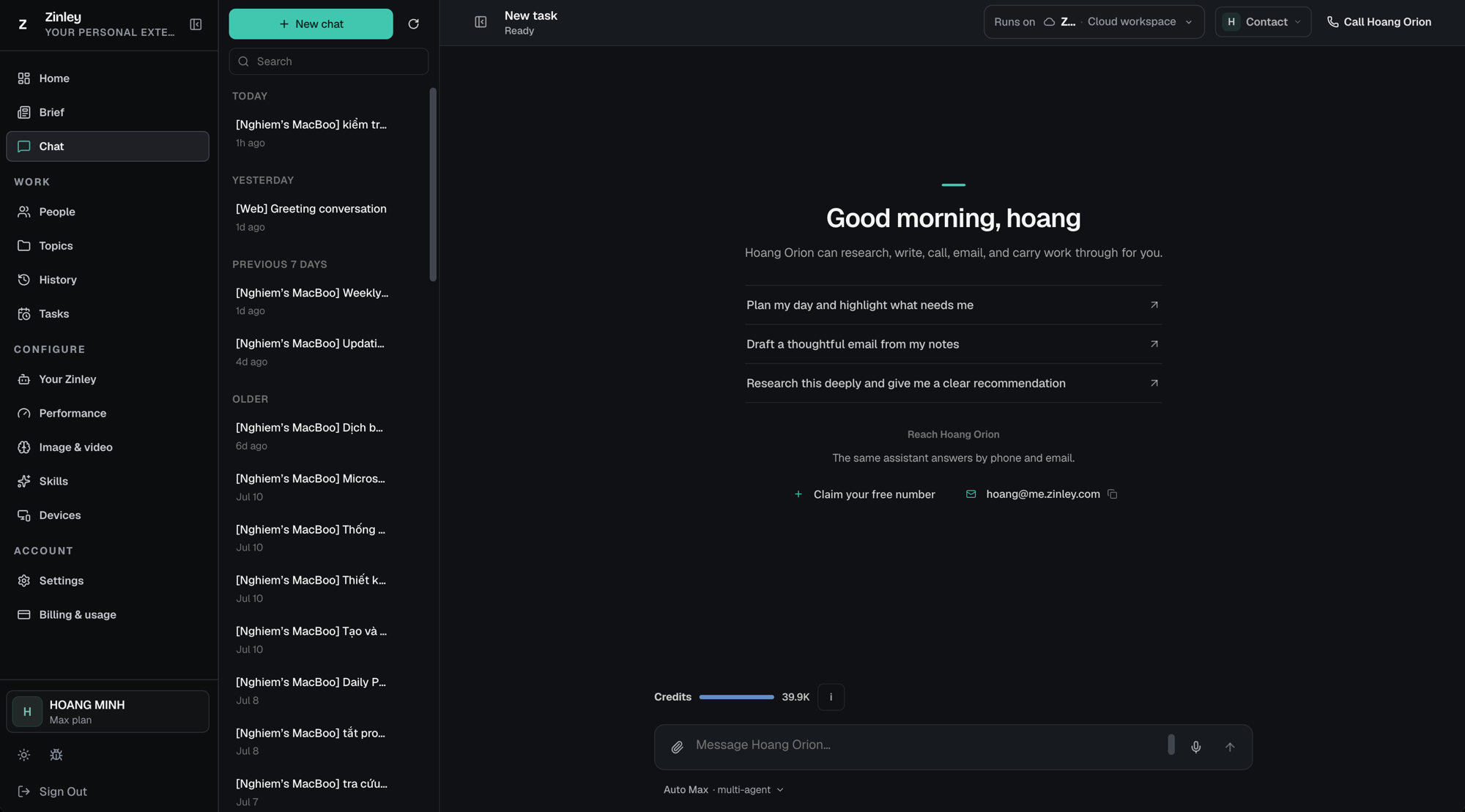
The header
Across the top of a chat you'll find the task name and three controls. On the far left, the collapse sidebar icon hides or shows the conversation list; next to it is the task name and status (e.g. "New task" · Ready). The three controls on the right each open a small panel — covered below.
Runs on — pick a workspace
Choose where this message actually runs. Click Runs on to open "Run on — Choose a workspace for this message."
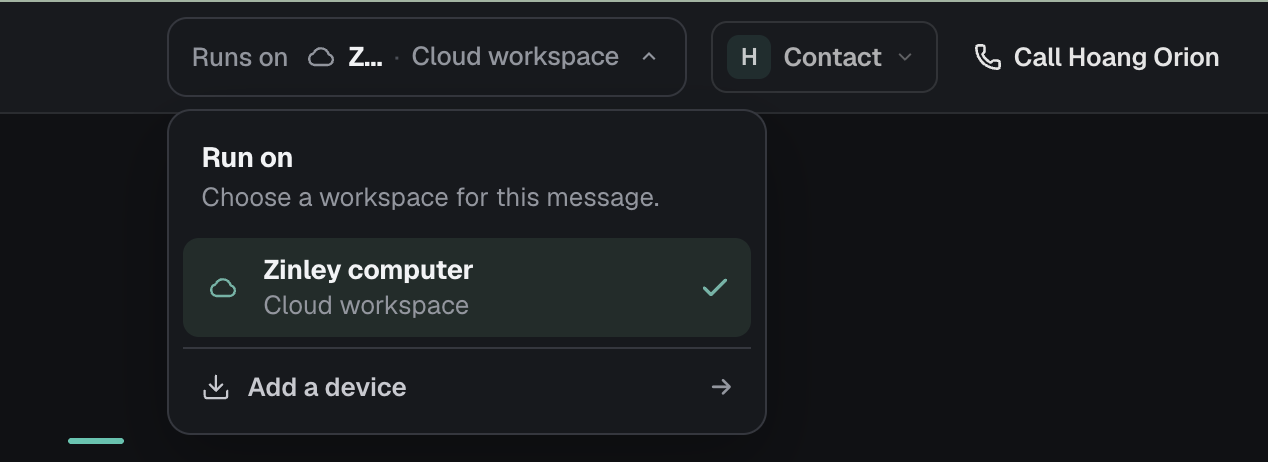
- Zinley computer (Cloud workspace) — Zinley's own virtual computer, selected by default (the ✓).
- Add a device → — connect your own computer or phone so tasks can run there instead. Manage what's connected under Devices.
Contact — how people reach this agent
Click Contact to see the agent's channels and manage its identity.
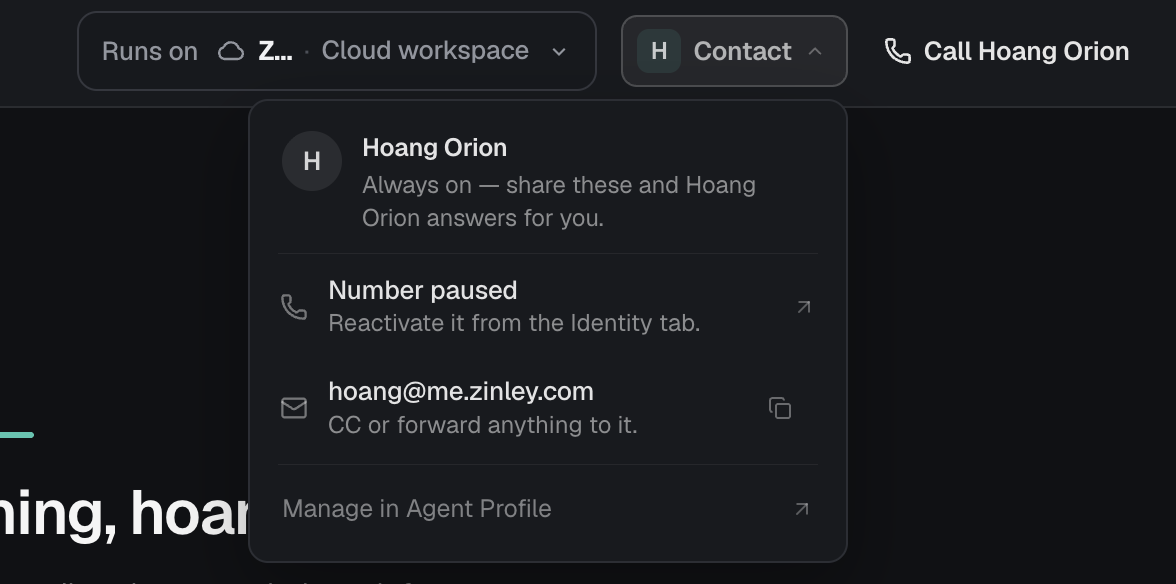
- [Your agent] — "Always on — share these and [agent] answers for you."
- Number — its phone line and current status (e.g. "Number paused — Reactivate it from the Identity tab"). Click through to fix it.
- Email (
…@me.zinley.com) — "CC or forward anything to it." Use the copy icon to grab the address. - Manage in Agent Profile → — jump to Your Zinley for the full setup.
Call — talk to your agent live
Click Call [your agent] to talk to your assistant by voice, right in the browser.
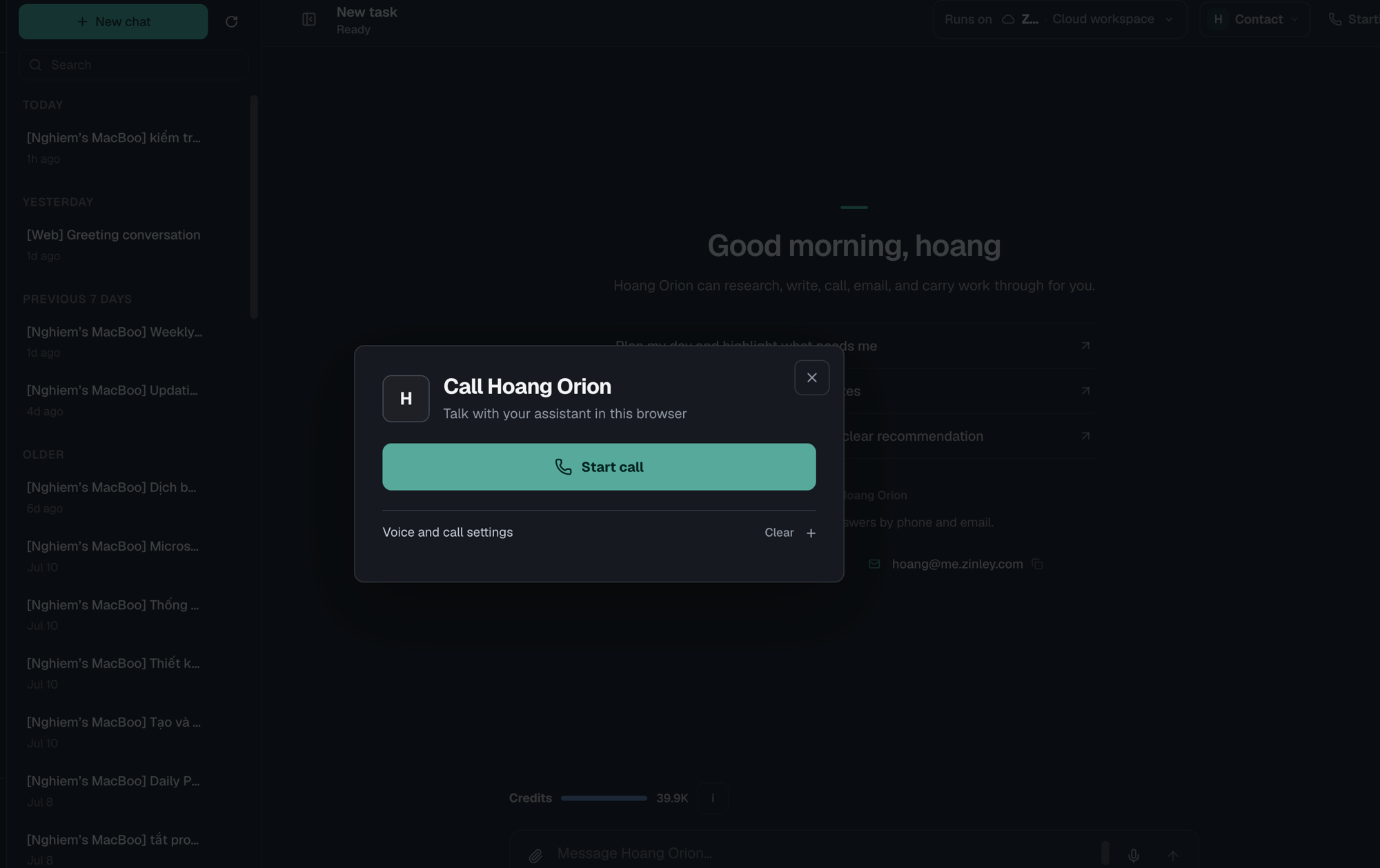
- Start call — begin a live voice conversation — "Talk with your assistant in this browser."
- Voice and call settings — adjust the voice and how calls behave (see Your Zinley).
- Clear — start the call fresh.
Conversation history (sidebar)
The left column keeps every conversation you've had:
- New chat — start a fresh conversation. The refresh icon reloads the list.
- Search — find any past conversation by keyword.
- Conversations are grouped by time — Today, Yesterday, Previous 7 days, and Older — newest first.
- Each entry shows where it started (a source tag like [Web] or [Nghiem's MacBook]), a title, and how long ago it was. Click one to reopen it — everything stays searchable.
Starting a conversation
Open a new task and you'll see a greeting ("Good morning, hoang") and a one-line reminder of what your agent can do. To get going:
- Click a suggested prompt — e.g. "Plan my day and highlight what needs me," "Draft a thoughtful email from my notes," or "Research this deeply and give me a clear recommendation."
- Or type in the Message… box and press Enter. Ask naturally: "Email Anh and ask for the updated invoice," or "Call the clinic and reschedule my appointment."
Under Reach [your agent] you can also Claim your free number or copy its email address — the same assistant answers by phone and email.
The message box
| Control | What it does |
|---|---|
| 📎 Attach | Add a file or image for Zinley to work with |
| 🎤 Speak | Turn on the mic to dictate your message instead of typing |
| ↑ Send | Send your message (or just press Enter) |
Credits
Just above the message box, a Credits bar shows how much you have left (e.g. 39.9K). Click the ⓘ for a breakdown:
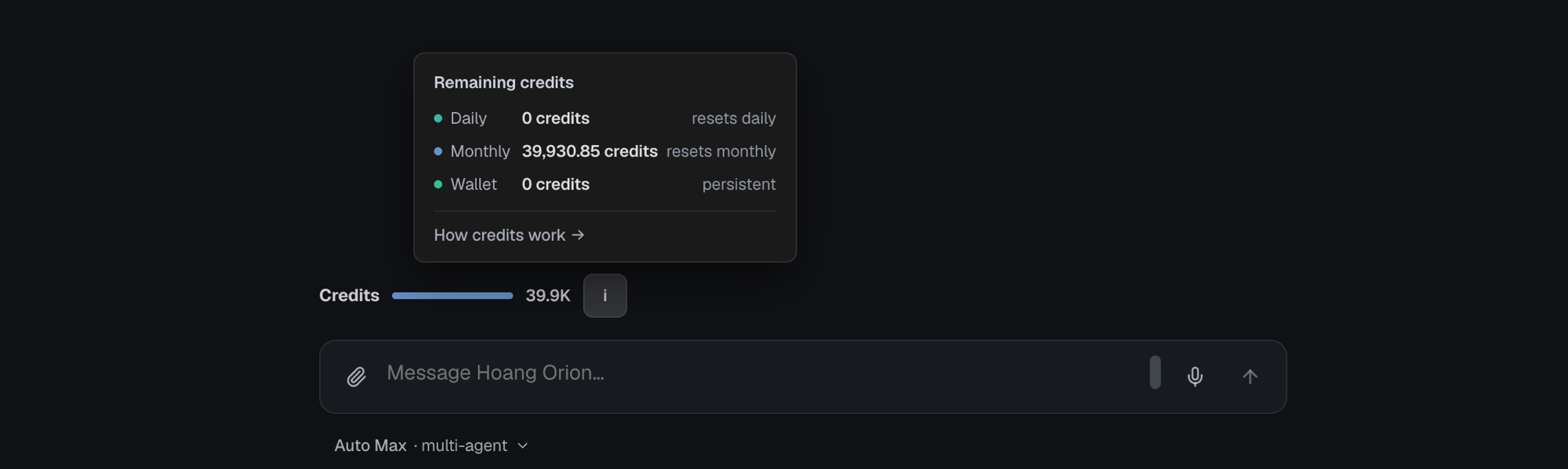
| Bucket | Resets | What it is |
|---|---|---|
| Daily | Resets daily | A daily allowance included with your plan |
| Monthly | Resets monthly | Your plan's monthly credits |
| Wallet | Persistent | Top-up credits that don't expire |
How credits work → opens the full explanation. For your plan and top-ups, see Billing & Usage.
Choosing the model / team
The selector at the bottom-left (e.g. Auto Max · multi-agent) controls how much horsepower each task gets. Open it to see the setup:
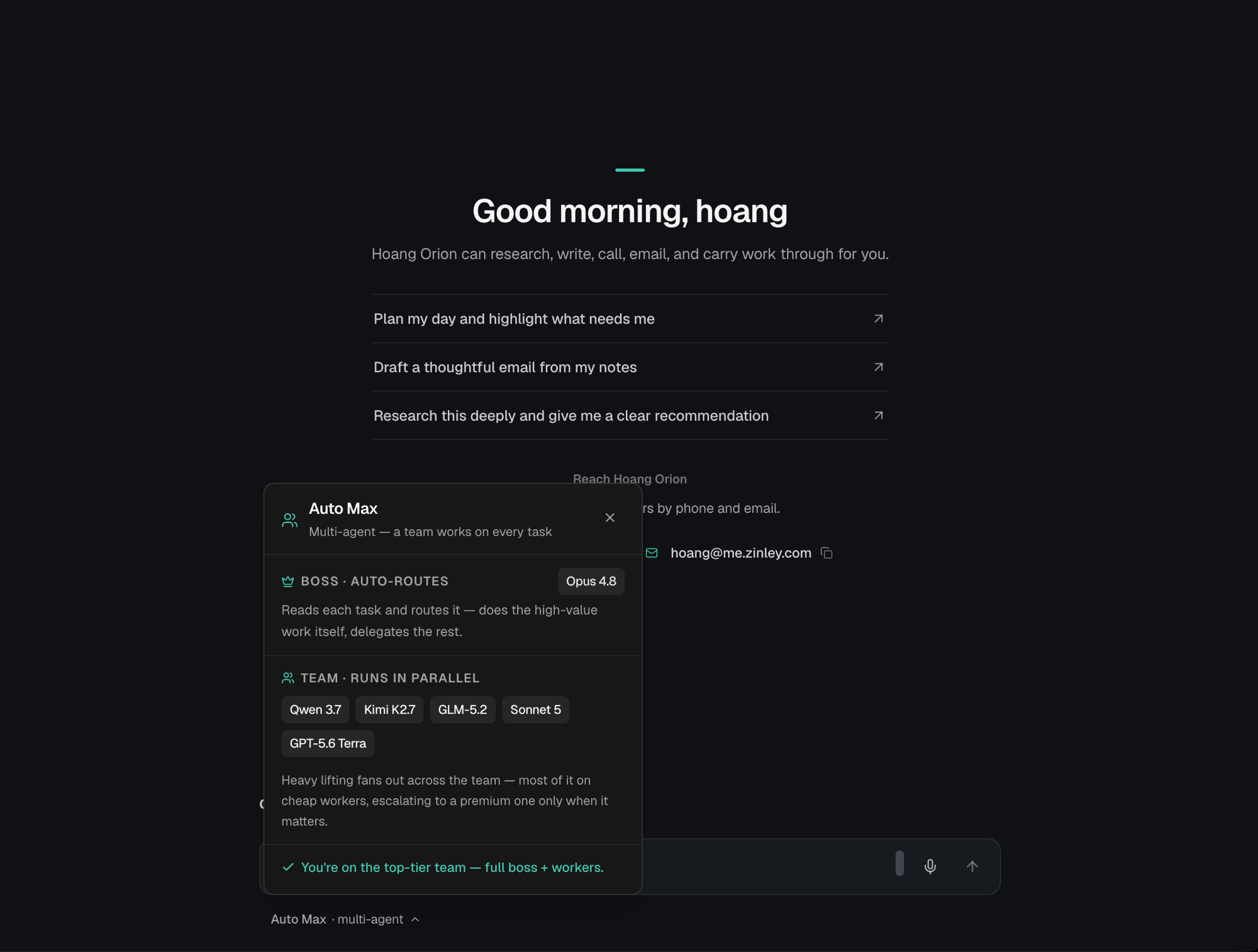
- Auto Max — multi-agent: a team works on every task.
- Boss · auto-routes (e.g. Opus 4.8) — reads each task and routes it: does the high-value work itself and delegates the rest.
- Team · runs in parallel (e.g. Qwen 3.7, Kimi K2.7, GLM-5.2, Sonnet 5, GPT-5.6 Terra) — the heavy lifting fans out across the team, mostly on cheaper workers, escalating to a premium one only when it matters.
- A line at the bottom confirms your tier — e.g. *"You're on the top-tier team — full boss
- workers."*
Pick a lighter mode when you want speed or to save credits, or the top tier for the hardest work. More in Performance and Image & video.
One identity across phone and email
Zinley has a single identity that works everywhere: CC it into any email thread, or call its number, and it picks up 24/7. When you ask it to reach someone, it acts as the second you — see What is Zinley? for how that works.
Next steps
- Quick Start — your first conversation, step by step.
- Tasks — delegate longer work and track it to completion.
- Your Zinley — shape how Zinley sounds and behaves in every reply.