Skills
The Skills page is what Zinley knows how to do — and the rules it follows. It's one library, synced across all your devices. Open Configure → Skills.
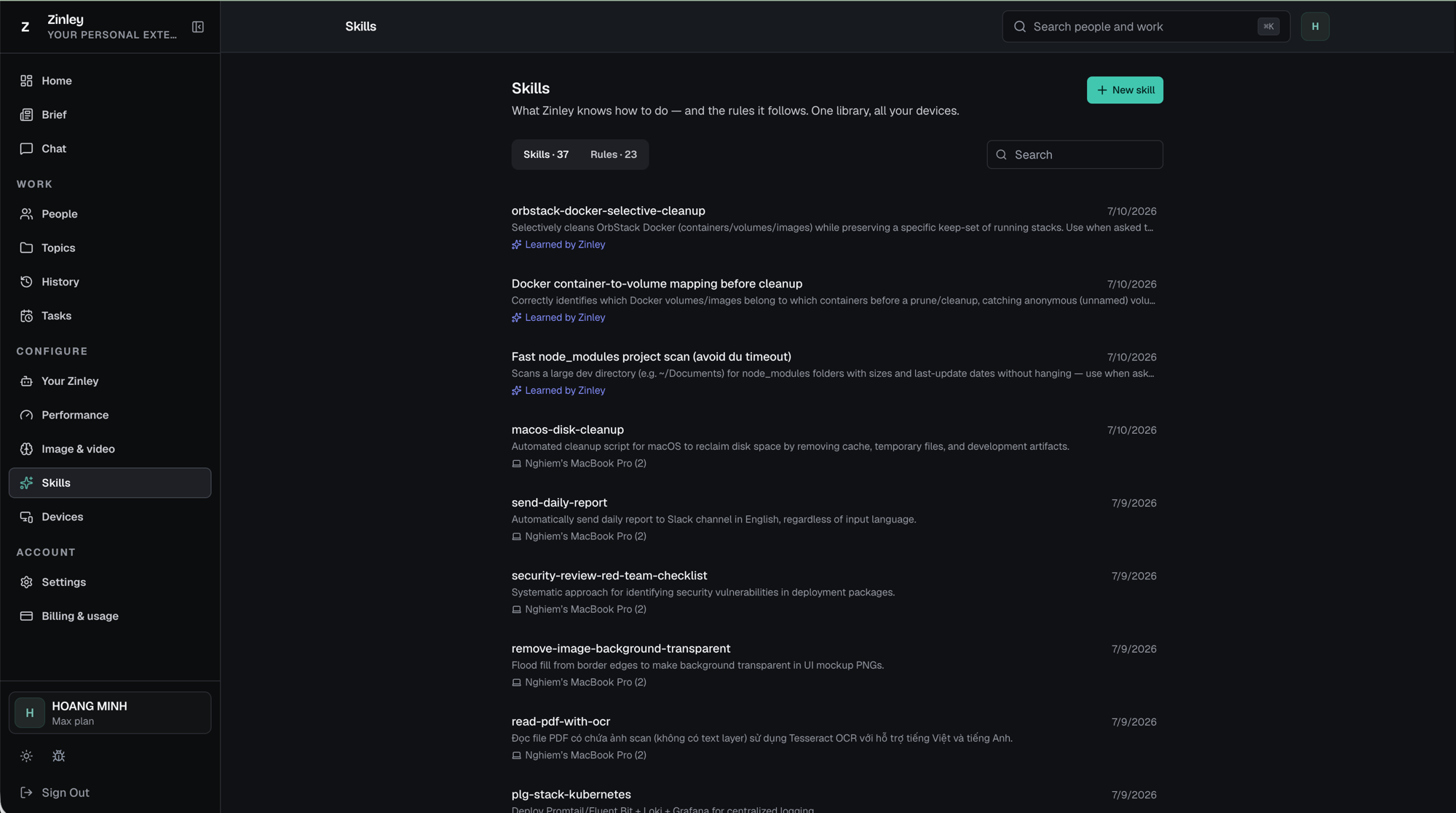
Two kinds of entry live here, switched with the pills near the top:
- Skills · N — reusable know-how: a repeatable way to do something (e.g. format a weekly report, clean up Docker).
- Rules · N — guardrails: what to always do or never do (e.g. never send invoices unreviewed).
Use Search to filter. Each row shows the name, a one-line description, the last updated date, and where it came from.
Skills Zinley learns on its own
This is what makes the library powerful: Zinley doesn't only use what you write — it learns skills and rules by itself while working with you, so it gets better at doing things your way over time. Every row is tagged with its source:
- ✨ Learned by Zinley — Zinley created this entry on its own from something it figured out while working. No setup on your part.
- 🖥 <device> (e.g. Nghiem's MacBook Pro) — you created this one; the tag shows the device it's synced from.
Because the library is tied to your account, a skill Zinley learns on one machine is available on all your devices — see Devices.
Creating a skill
Click + New skill (top right) to open the editor:

Name — a short handle (e.g. Weekly report format).
When should your assistant use this? — a clear sentence helps your assistant choose it at the right time (e.g. "Formats the Monday exec summary for weekly reports and status updates.").
Instructions — the how-to, in Markdown. The box starts with a template:
# Name of the skill

What this helps with, in one line.

## Steps
1. First step
2. Second step
3. What NOT to do
Save to add it to the library (or Cancel / ✕ to discard).
Create from Chat, too: you don't have to use this form — just ask in Chat (e.g. "Save that as a skill") and Zinley writes it into the library for you.
Creating a rule
Switch to the Rules pill to filter the library to just guardrails:
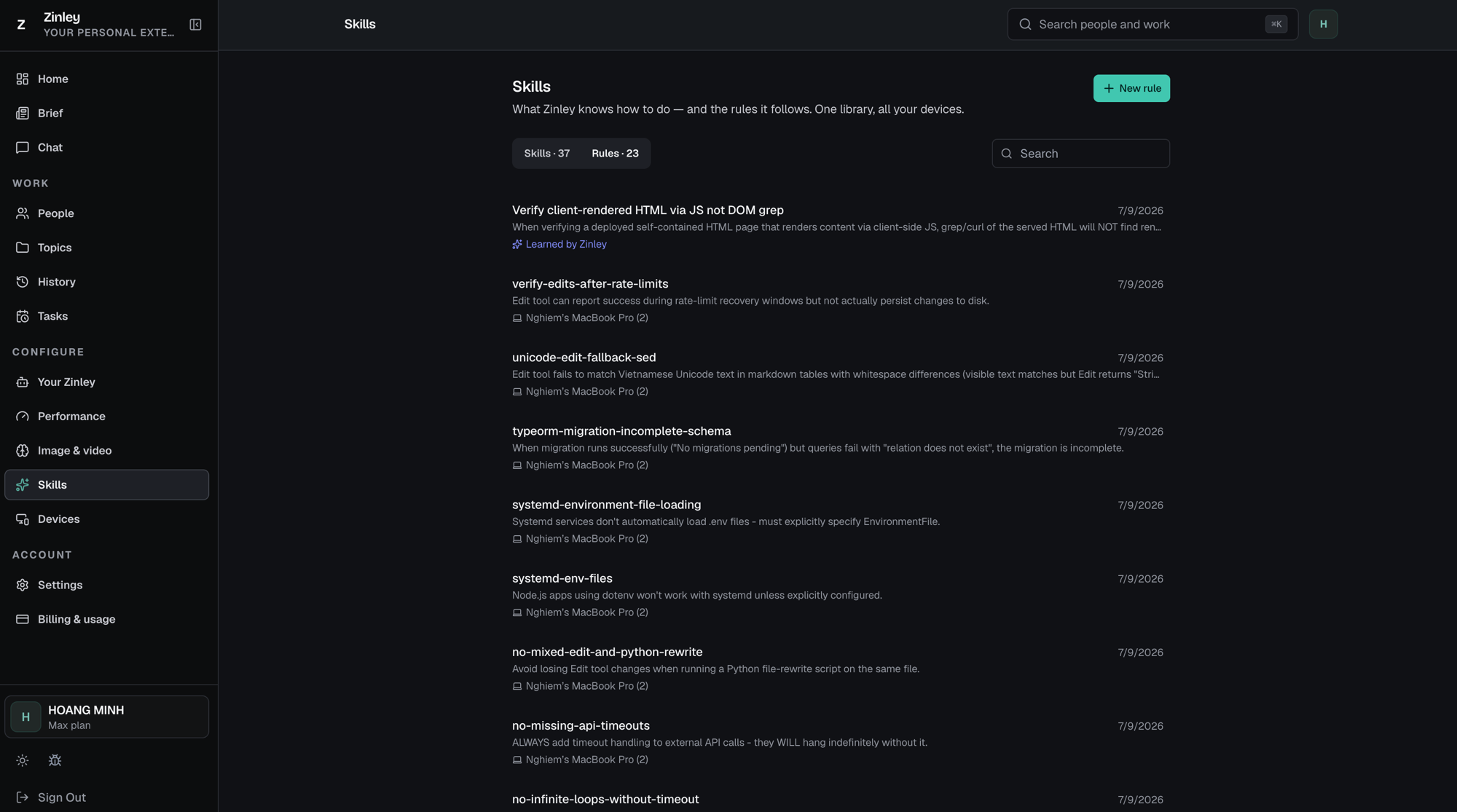
Then click + New rule. The editor is the same shape as a skill, worded for guardrails:
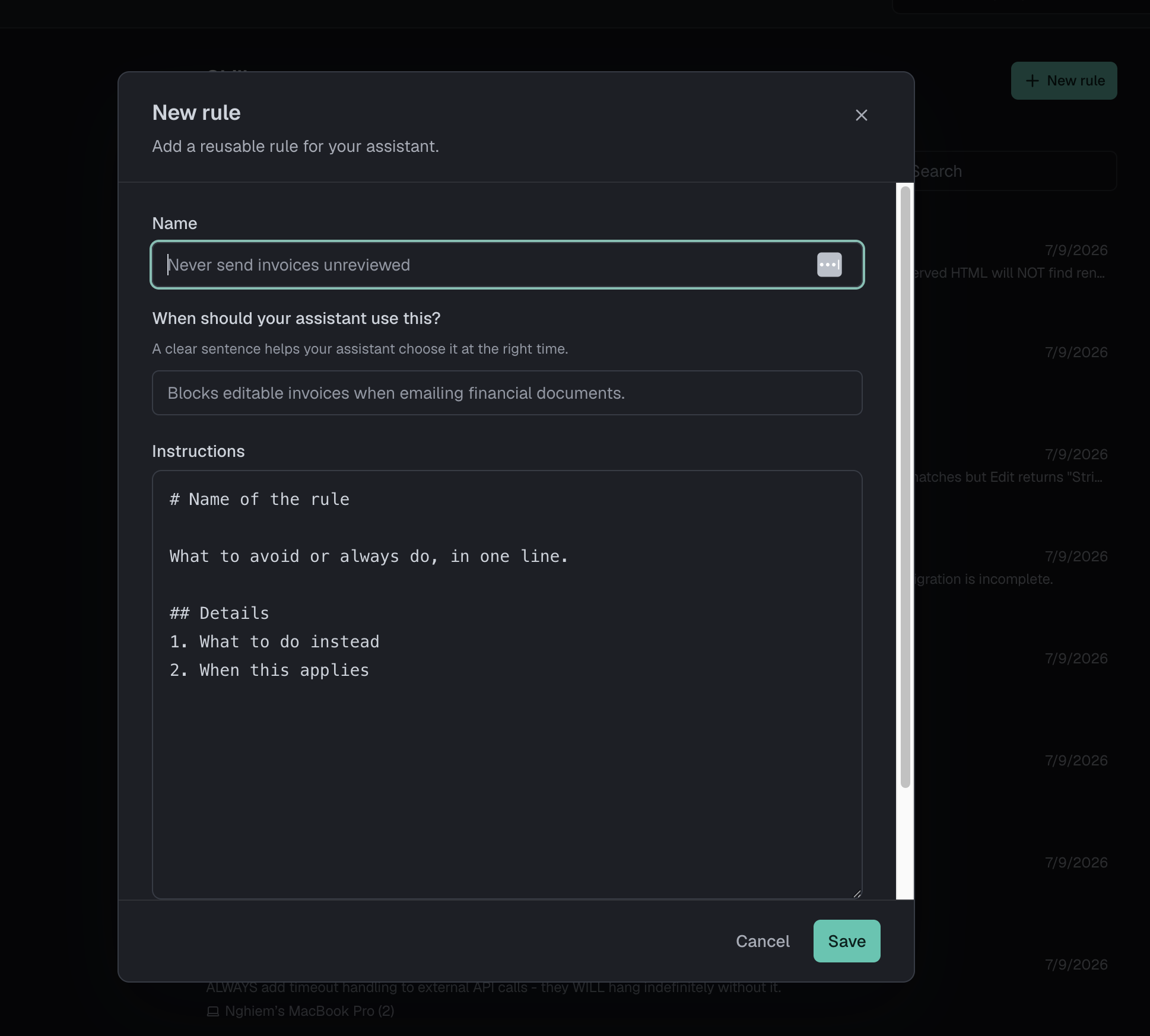
Name — the rule (e.g. Never send invoices unreviewed).
When should your assistant use this? — e.g. "Blocks editable invoices when emailing financial documents."
Instructions — Markdown, with a rule-shaped template:
# Name of the rule

What to avoid or always do, in one line.

## Details
1. What to do instead
2. When this applies
Save to add it.
Viewing, editing, and deleting
Click any skill or rule to open its detail view — the full instructions, its source (Learned by Zinley or a device), and when it was last updated.

- Edit — change the name, when-to-use sentence, or instructions, then save.
- Delete — remove it from the library (the red button, bottom-left).
Related
- Your Zinley — your agent's identity, voice, and the Rules tab.
- Chat — create skills and rules just by asking.
- Devices — the library follows Zinley across your devices.