Your Zinley
The Your Zinley page is where you shape who your agent is and how it behaves. Open Configure → Your Zinley. It's organized into five tabs — Profile, Personality & voice, Rules, Workflows, and Apps — each covered in full below. Changes save per tab; look for the Save button that appears when you edit a field.
Profile — who your agent is
The Profile tab sets your agent's identity and the ways people reach it — its name, photo, phone number, and email.
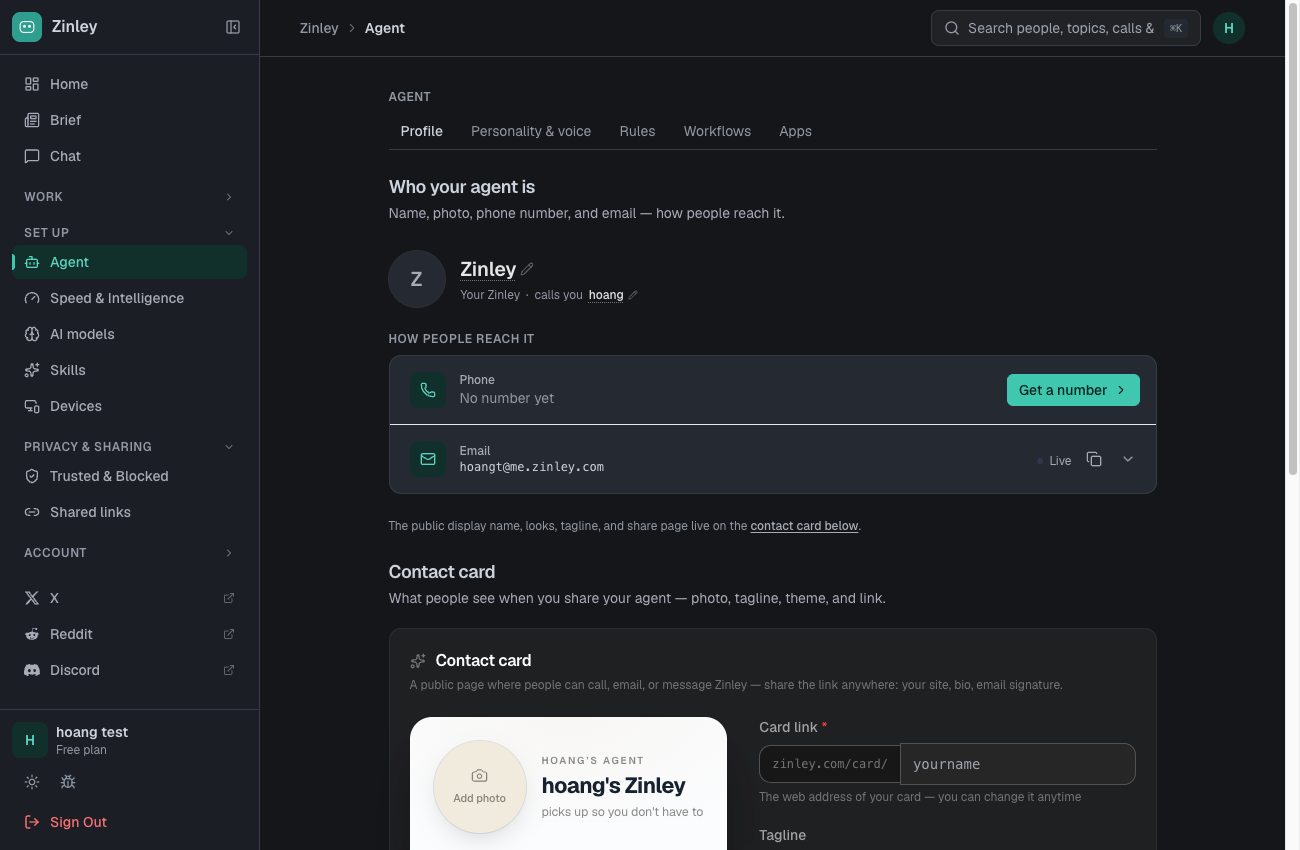
- Name — what your agent is called (e.g. Zinley). Click the field to edit inline; it updates everywhere the agent introduces itself.
- What it calls you — the name it uses for you on calls and in messages (e.g. hoang). Edit inline.
- Photo — click the avatar to upload or replace the picture shown on the contact card and in chats.
- Phone — the number people call or text to reach your agent. If you don't have one yet, click Get a number.
- Email — your agent's live
@me.zinley.comaddress. Mail sent here reaches the agent; use Copy to grab the address.
Click Get a number to open the number picker:

- Search — type an area code or city to list available numbers (US & Canada).
- Claim / Buy — pick a number and confirm to assign it to your agent.
- After claiming, the number appears under Phone; see Devices for which numbers run where.
Contact card
The Contact card is a public page showing your agent's number, where people can call, email, or message it — your agent's "front door."

- Photo and Tagline — the picture and one-line description shown at the top.
- Theme — the card's color/style.
- Shareable link — a public URL like
zinley.com/card/yourname. Use Copy link, the QR code, or Embed to drop it into your site, bio, or email signature.
Personality & voice — how it sounds and behaves
The Personality & voice tab controls how your agent sounds on calls and the vibe it carries into every conversation.
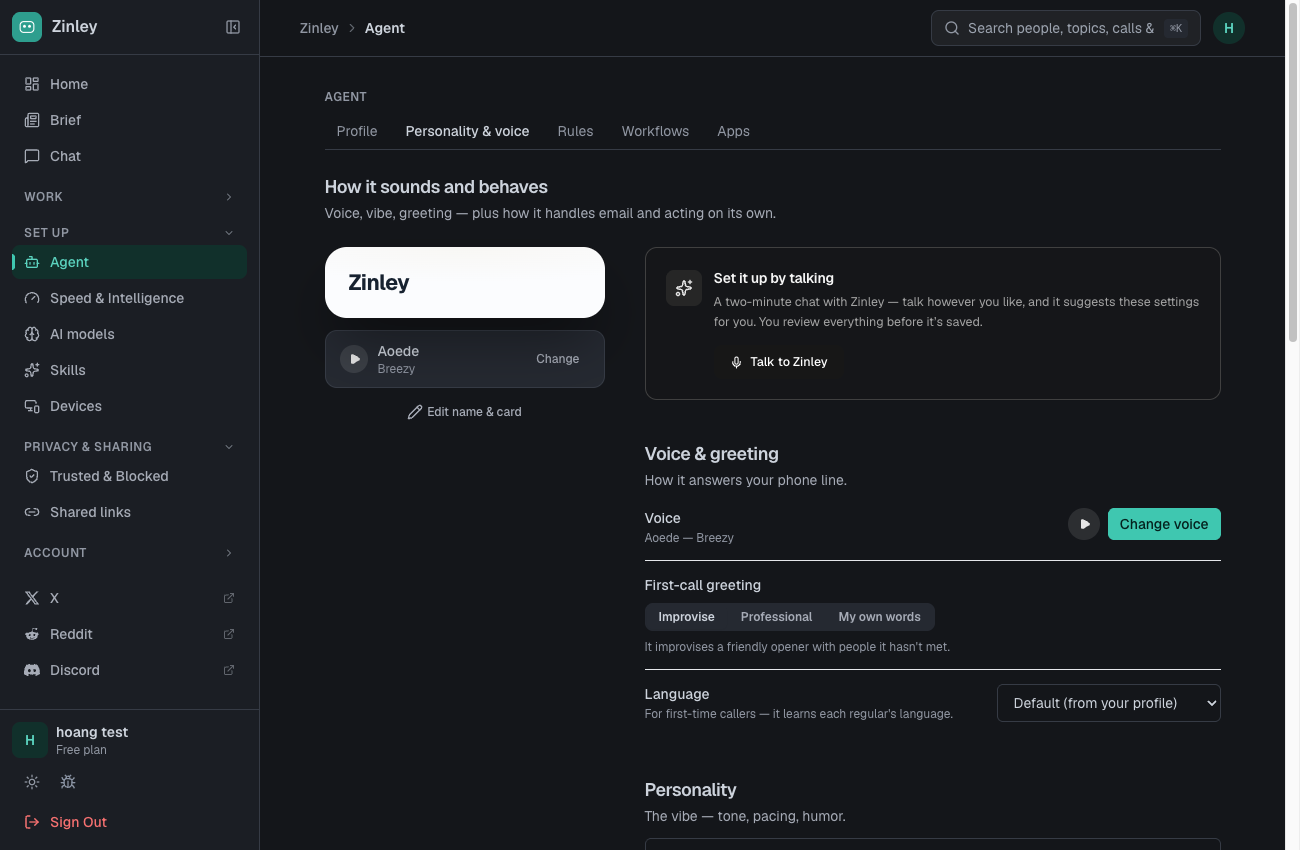
- Voice — pick the voice it uses on calls (e.g. Aoede — Breezy). Open the selector to preview and choose.
- First-call greeting — how it opens with someone new. Choose Improvise, Professional, or My own words (type the exact opening line you want).
- Language — the default it speaks; taken from your profile, and it learns each regular caller's language over time.
- Personality — the vibe: tone, pacing, and humor. Adjust to taste, then Save.
Prefer to set this up by talking? Click Talk to Zinley:

Set it up by talking: Talk to Zinley is a two-minute voice chat — talk however you like and it suggests these settings for you to review before you Save.
Rules — lines your agent won't cross
The Rules tab holds the guardrails your agent follows — what to always do or never do (e.g. "Never send invoices unreviewed", "Don't share internal pricing"). Rules and skills live in one shared library, so you can also manage the full list on the Skills page.

- + New rule — add a guardrail. You give it a Name, a one-line answer to "When should your assistant use this?", and Instructions in Markdown.
- Rule list — each rule shows its name, description, and source: either ✨ Learned by Zinley (it wrote the rule itself) or the device you created it on.
- View / Edit / Delete — click a rule to read it in full, then Edit or Delete.
A screenshot of this exact tab is still pending, but the rule editor and its fields match the shared library shown on the Skills page — see there for the full create/edit/delete walkthrough.
Workflows — repeatable multi-step routines
The Workflows tab is where you define repeatable, multi-step routines your agent can follow — a named sequence of steps it runs the same way each time (e.g. "Qualify a new lead" or "Book a callback").

- New workflow — start a new routine.
- Workflow list — each saved routine shows its name, its trigger (when it runs), and an on/off toggle to enable or pause it.
- Edit (✎) — open a workflow to change its steps.
- Delete (🗑) — remove a workflow.
Opening a workflow shows its editor:

- Name — what the routine is called in your list.
- Trigger — what kicks it off (a request, a keyword, or a schedule).
- Steps — the ordered actions the agent performs; add, reorder, or remove each step.
- Save — store the workflow (or Cancel to discard changes).
Draft — verify against the live UI. The step editor, trigger options, and button labels above are described from the product concept and aren't confirmed against a screenshot yet. Check them on your local build and tell me what differs so I can correct it.
Apps — connect the tools it works with
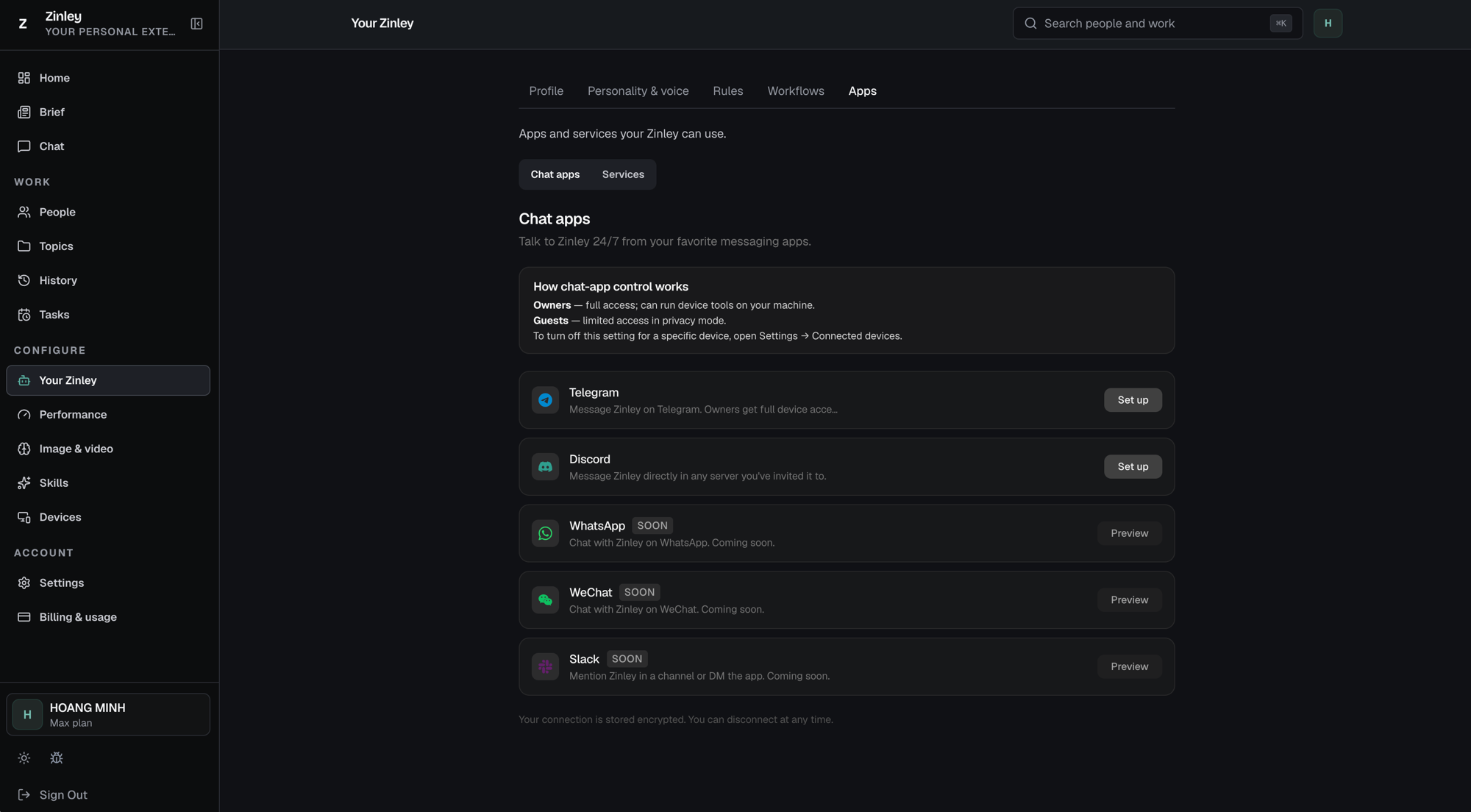
The Apps tab is where you connect the external apps and services your agent can use. It has two sub-tabs: Chat apps and Services.
Chat apps
Talk to Zinley 24/7 from your favorite messaging apps. Each row is one app — its icon, name, a short description, and an action button on the right.
- Set up — connect a live app so you can message your agent there. Available now for Telegram and Discord.
- Preview — apps marked SOON (e.g. WhatsApp, WeChat, Slack) aren't live yet; Preview shows what's coming.
Above the list, the How chat-app control works box explains what a connected app can do:
- Owners — full access; can run device tools on your machine.
- Guests — limited access in privacy mode.
- To turn this off for a specific device, open Settings → Connected devices.
Your connection is stored encrypted, and you can disconnect at any time.
Services
The Services sub-tab connects other integrations your agent works with, beyond messaging.
Draft — verify against the live UI. The Services sub-tab isn't captured yet — the line above is a placeholder. Send me a screenshot of it and I'll document it in full.
Related
- Skills — reusable abilities that pair with your Rules.
- Performance — how fast/deep it thinks.
- Devices — where it runs and the numbers it uses.
- Settings — your own account details (separate from the agent).