Devices
Manage the devices Zinley can use. Zinley reaches only the devices you allow. Open Configure → Devices. The Connected devices header shows how many are linked — e.g. ● 3 devices.
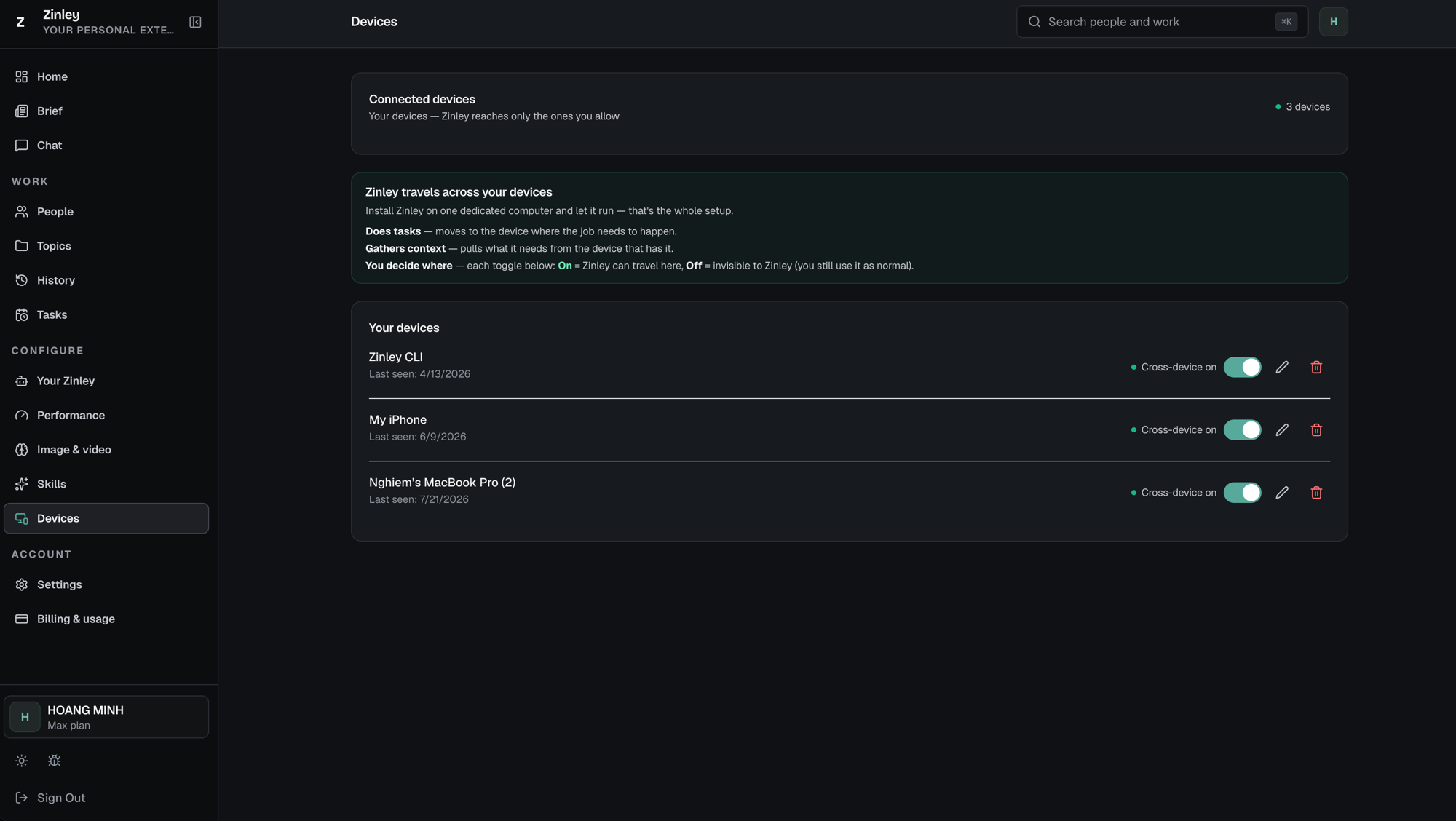
Zinley travels across your devices
Install Zinley on one dedicated computer and let it run — that's the whole setup. From there it moves between the devices you allow:
- Does tasks — moves to the device where the job needs to happen.
- Gathers context — pulls what it needs from the device that has it.
- You decide where — each device has a toggle: On = Zinley can travel here, Off = invisible to Zinley (you still use the device normally).
Your devices
Each connected device is a row in this list:
- Name — the device's name (e.g. Zinley CLI, My iPhone, Nghiem's MacBook Pro (2)).
- Last seen — when Zinley last reached it (e.g. Last seen: 7/21/2026).
- Cross-device — the toggle that decides whether Zinley can travel to this device (Cross-device on / off).
- Edit (✎) — rename the device.
- Delete (🗑) — remove the device.
New account? Until a device connects you'll see "No devices found." You can also review connected devices from Settings → Connected devices.
Devices vs. phone numbers
This page is about computers/devices Zinley runs on. Claiming and managing phone numbers happens on Your Zinley — use Get a number to search and buy one (US & Canada) — and under Billing & Usage (each line is billed separately).
Related
- Your Zinley — your agent's number and email.
- Chat — tell Zinley which connected device to run a task on.